WSJT-X to an online logbook: logging FT8 automatically
by Priit ES1TEB4 min read
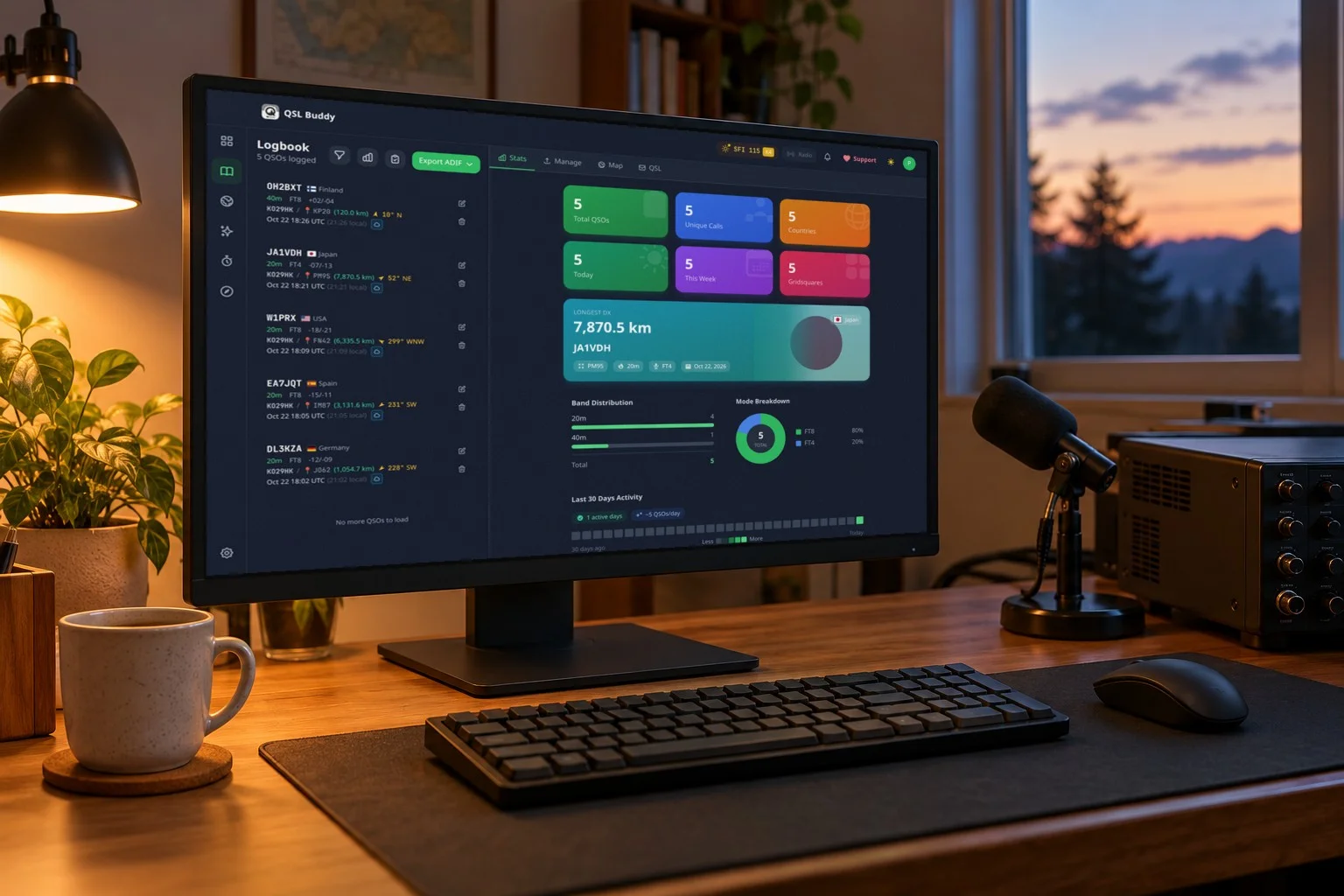
When you click OK in the Log QSO window, WSJT-X adds the contact to its own log files and sends a QSO Logged message to the address and port set as its UDP Server. The QSL Buddy Bridge is a small desktop app that listens on that port and passes each contact on to your QSL Buddy logbook. Set it up once, keep it running, and your FT8 and FT4 contacts reach your web log a few seconds after you log them.
What WSJT-X sends, and where
The settings are on the Reporting tab of File → Settings, in the UDP Server group: an address, 127.0.0.1 (this computer) by default, and a port, 2237 by default. The QSO Logged message carries the call, grid, frequency, mode, both reports, start and end times, and your own call and grid. The Accept UDP requests box beside it lets other programs control WSJT-X; logging does not need it.
Below sits the Secondary UDP Server, which the WSJT-X guide marks as deprecated. Its Enable logged contact ADIF broadcast option sends each contact as plain ADIF text, without the header WSJT-X's own messages carry, and the Bridge cannot read that. Do not use it for the Bridge. Its default port, 2333, happens to be the Bridge's default too, but matching numbers do not make the two compatible.
The Bridge also accepts JTDX's slightly shorter QSO Logged message. In JTDX, set the UDP server address and port to match the Bridge.
Why one port can feed several programs
UDP has no connection: WSJT-X sends a packet and moves on. Send to a multicast group address and every program that joins the group can receive the packets. Send to 127.0.0.1 and normally only one program can listen on that port, so the usual answer is a program that passes the packets on.
The Bridge takes that second route. It listens on an ordinary address and port, not a multicast group. With forwarding switched on, it passes a copy of every packet it receives, untouched, to another port, and GridTracker2 can listen there.
Setting it up
- Download the Bridge from qslbuddy.com/bridge and unzip it. Downloads are available for 64-bit Windows and for macOS on Intel or Apple Silicon. There is no Linux download.
- In QSL Buddy, open Settings → Integrations and press Generate Token in the Bridge section. Copy it straight away: it is shown once, and only a hash of it is stored. Generating a new token later replaces the old one.
- Start the Bridge, open its Settings tab, paste the token and save.
- In WSJT-X, File → Settings → Reporting: UDP Server
127.0.0.1, port2333, the port the Bridge listens on out of the box. If you would rather keep WSJT-X on2237, change the Bridge's port to2237instead. The port in WSJT-X must match the Bridge's, and no other program may already be listening on it. - If you run GridTracker2, set it to listen on
2238, switch on UDP Forwarding in the Bridge's settings with address127.0.0.1and port2238, and start GridTracker2 first. - Press Start Bridge. Once WSJT-X's heartbeat or status messages arrive, the status card shows which program is sending.

What arrives in the log
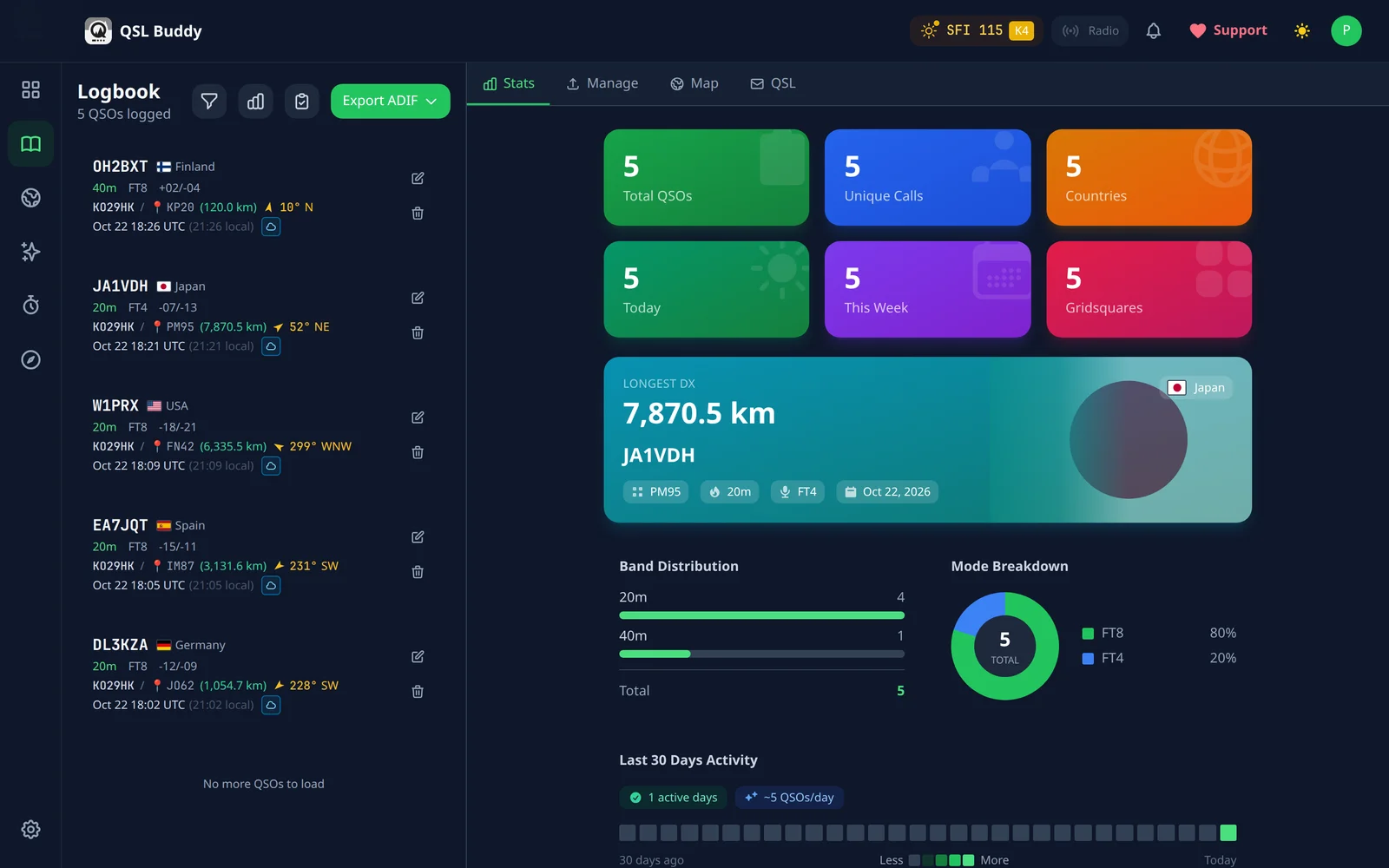
Each contact arrives with the call, grid, band, mode, both reports and the start time. The frequency is WSJT-X's transmit frequency, dial plus audio offset: on a 14.074 MHz dial with a 1420 Hz offset, the contact reads 14.075420 MHz. Once QSL Buddy has received the contact, an open logbook tab shows it within seconds, with no reload.
If you have contest sessions in QSL Buddy, the Bridge's status card shows a Contest Mode picker. Choose a session there and contacts go to that contest log, where they are scored, instead of the main logbook.
Limits
- The Bridge has to be running when you log. WSJT-X sends the QSO Logged message once and does not send it again when the Bridge starts later. Contacts missed that way are still in
wsjtx_log.adi(File → Open log directory), and you can import that file into QSL Buddy. - Contacts the Bridge has received are stored in a database on your computer first. If the internet is down, it keeps retrying until it gets through; other errors are retried five times, and you can retry by hand. The Bridge can also export its local copy as ADIF.
- A repeat of the same contact, with the same call, band and exact start time, is not added twice.
If any of this trips you up, tell me.
QSL Buddy is free: no paid tier, no subscription, no trial, and the Bridge costs nothing either. 73.