How to log a POTA activation and upload it to pota.app
by Priit ES1TEB5 min read
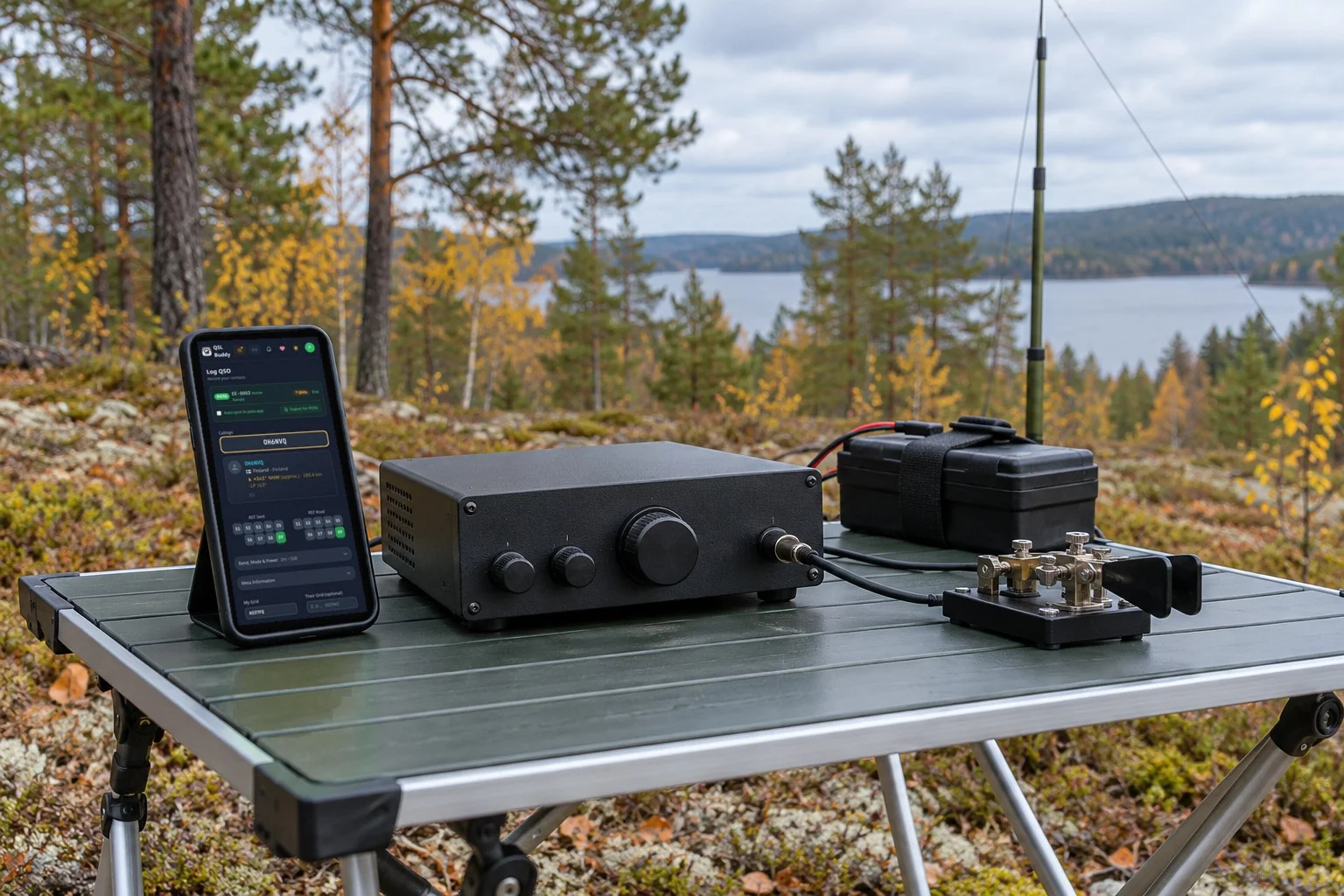
A POTA activation is successful when you make at least 10 QSOs from a listed park within a single UTC day. Then you upload an ADIF file at pota.app, one park per file, ideally with your park on every QSO. Here is each step in QSL Buddy, on a phone, with or without signal.
What POTA wants in the file
POTA's required ADIF fields are CALL, QSO_DATE, TIME_ON, BAND, MODE (or SUBMODE), and STATION_CALLSIGN or OPERATOR — for a one-person activation, the call you gave on the air. Date and time are UTC, and POTA counts a QSO by when it started.
Your park goes in MY_SIG (POTA) and MY_SIG_INFO (the reference, with its dash: EE-0003, not EE0003). If MY_SIG_INFO is missing, the uploader asks for the park. For a park-to-park contact, POTA strongly recommends putting the other activator's park in SIG (POTA) and SIG_INFO.
One file is for one park, in one location if the park spans several, but it may cover more than one UTC day. The 10 contacts are counted per UTC day: if you start at 23:30 UTC, QSOs started after midnight count for the next day. The uploader drops dupes, with no penalty. Upload an attempt short of 10 anyway: your hunters still get credit.
POTA's own rules win over any summary, mine included.
Before you lose signal
QSL Buddy runs in the browser; add it to your phone's home screen and open the logging page once while online, so the phone keeps a copy. Sign in and set your callsign in Settings: the activation button only appears once both are done.
Start the activation while you have a connection: looking up the park needs one. Tap Start Field Activation, leave the program on POTA and type the reference (name search only covers US parks). When the park's name and grid appear, tap Start POTA Activation.
At the park
While the activation runs, My Grid is filled with the park's grid from POTA's list — Karula, EE-0003, gives KO37FQ. Check it against where you are standing. Press End and your saved home grid comes back. Every QSO gets MY_SIG, MY_SIG_INFO and your call as STATION_CALLSIGN. Turn on the portable switch only if you sign /P on the air, since park-to-park matching needs the exact call the other side logged.
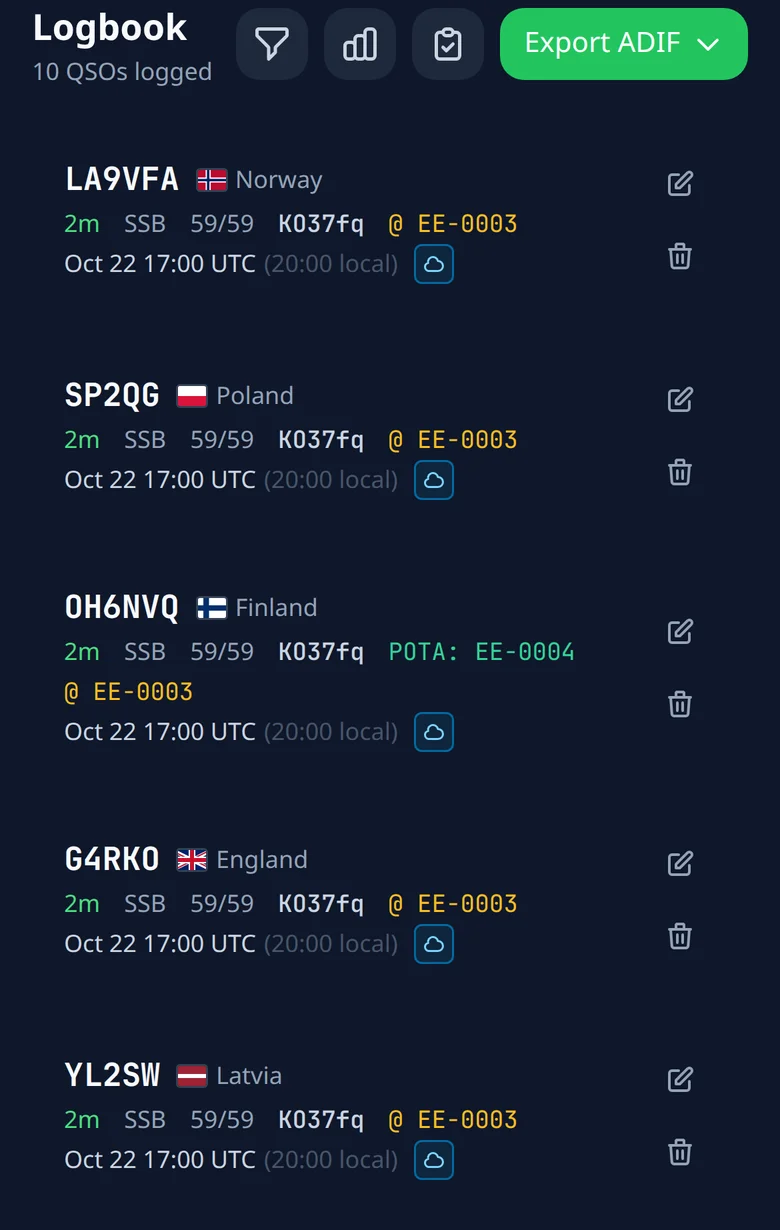
QSL Buddy stamps each QSO with the moment you press Log, so log as you go. If you write a contact up later, correct its time in the edit window.
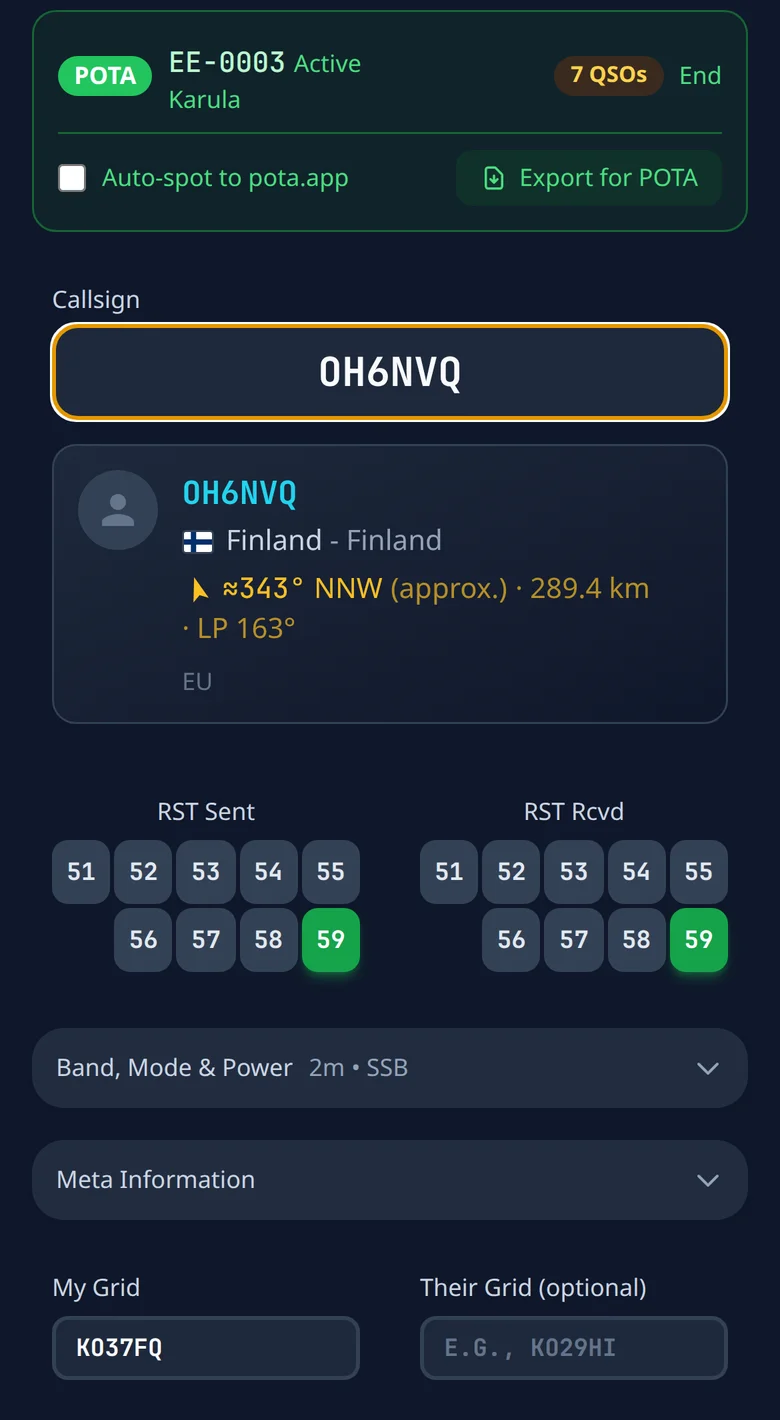
The banner's count is a rough guide: a plain number, not "out of 10", of the QSOs at that reference the app has loaded, earlier visits and dupes included. Count the day's contacts yourself.
With no signal, logging works; callsign lookup does not. A banner says how many QSOs are waiting, and they sync on their own when the connection is back.
Park to park
The other activator's park goes in Meta Information → Station Comment, typed as POTA: EE-0004, with the colon, because that is what turns it into SIG and SIG_INFO. Log the contact from a POTA spot on the live map with Log QSO and it is filled in for you. On the phone's DX spotter list it is not yet: the park only lands in the notes. Afterwards, the QSO's edit window has Their SIG and Their Reference.
Working a two-fer? POTA wants the same contact listed once per park, each line with one reference in SIG_INFO. Log it twice straight away, one park each, not both references in one comment.
Spotting yourself
If you have signal, tick Auto-spot to pota.app in the activation banner: after each QSO it posts a spot with your call, park, frequency and mode, at most once every two minutes. It needs a frequency, typed in Meta Information or read from the radio over CAT. Or spot yourself on pota.app's spotting page. Without signal, do what POTA's guide suggests: ask your first contact to spot you.
Exporting and uploading
First let the app finish syncing: the export reads your logbook from the server, so QSOs still waiting on the phone are not in the file.
Then press Export for POTA in the banner. Already ended? Start the same park again and the button comes back. The file holds the QSOs logged at that park, from every visit; any logbook filter you have set also applies. It is named like POTA-EE-0003-2026-10-22.adi, with the UTC date of the export. Check the QSOs are all there.
Log in at pota.app, open My Log Uploads, and upload the file. If you email the log to POTA's help desk instead, they ask for [email protected] with the activation date, so rename it. Found a mistake after uploading? You can't delete the log yourself: use Request Support next to it, and upload the corrected file once the old one is gone.
What it does not do yet
QSL Buddy activates one park at a time; there is no two-fer setting. If you were inside the overlap of two parks, POTA's guide gives the workaround: export the file, copy it, change MY_SIG_INFO in the copy to the second park, and upload one file per park. There is no OPERATOR field, so club activations under a club call are not covered. And there is no MY_STATE, so for a park listed in more than one state or region, the uploader asks where you were.
If one of these is in your way, tell me.
QSL Buddy is free: no paid tier, no subscription, no trial, nothing about POTA logging behind a paywall. 73.